Administration
Identity, branding and appearance
Set community copy, logos, favicon and post appearance without editing templates.
On this page
Community settings#
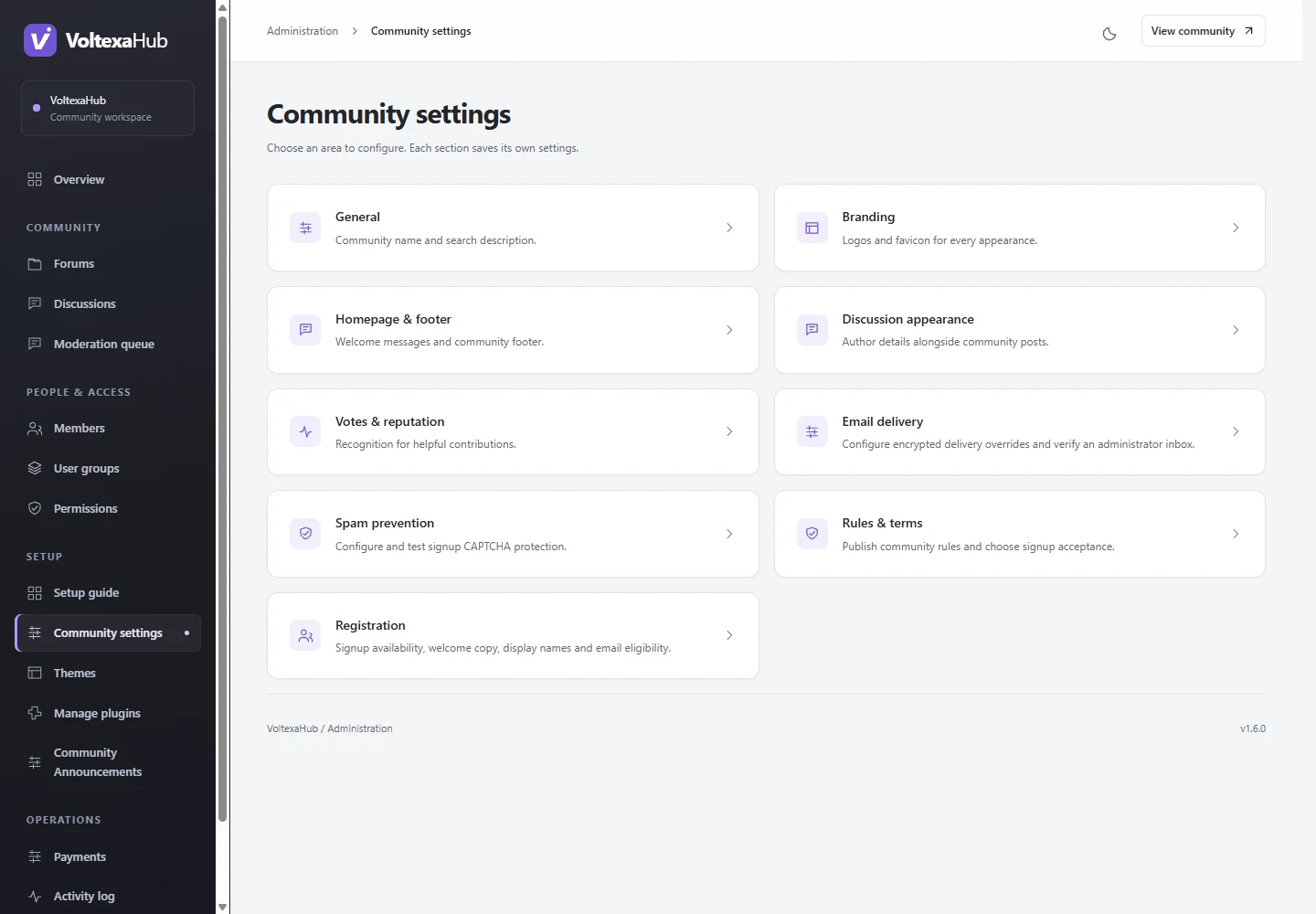
Open Administration → Community settings (/admin/settings). Settings have dedicated pages so you can change one area at a time.
Name and welcome copy#
Use General for community name and search description. Use Homepage & footer for the welcome heading, introductory copy and footer. Write a clear description of who the community is for and a useful first action. Save and inspect the public homepage on your own domain.
Logos and favicon#
Open Branding. Upload light/dark logos and a favicon using the page's file controls. Use the documented file constraints displayed beside each field; core validates and normalizes uploaded images. Preview both appearance modes, a small mobile header and a browser tab. To restore bundled artwork, use the explicit remove control. Do not upload a replacement and select removal for the same slot.
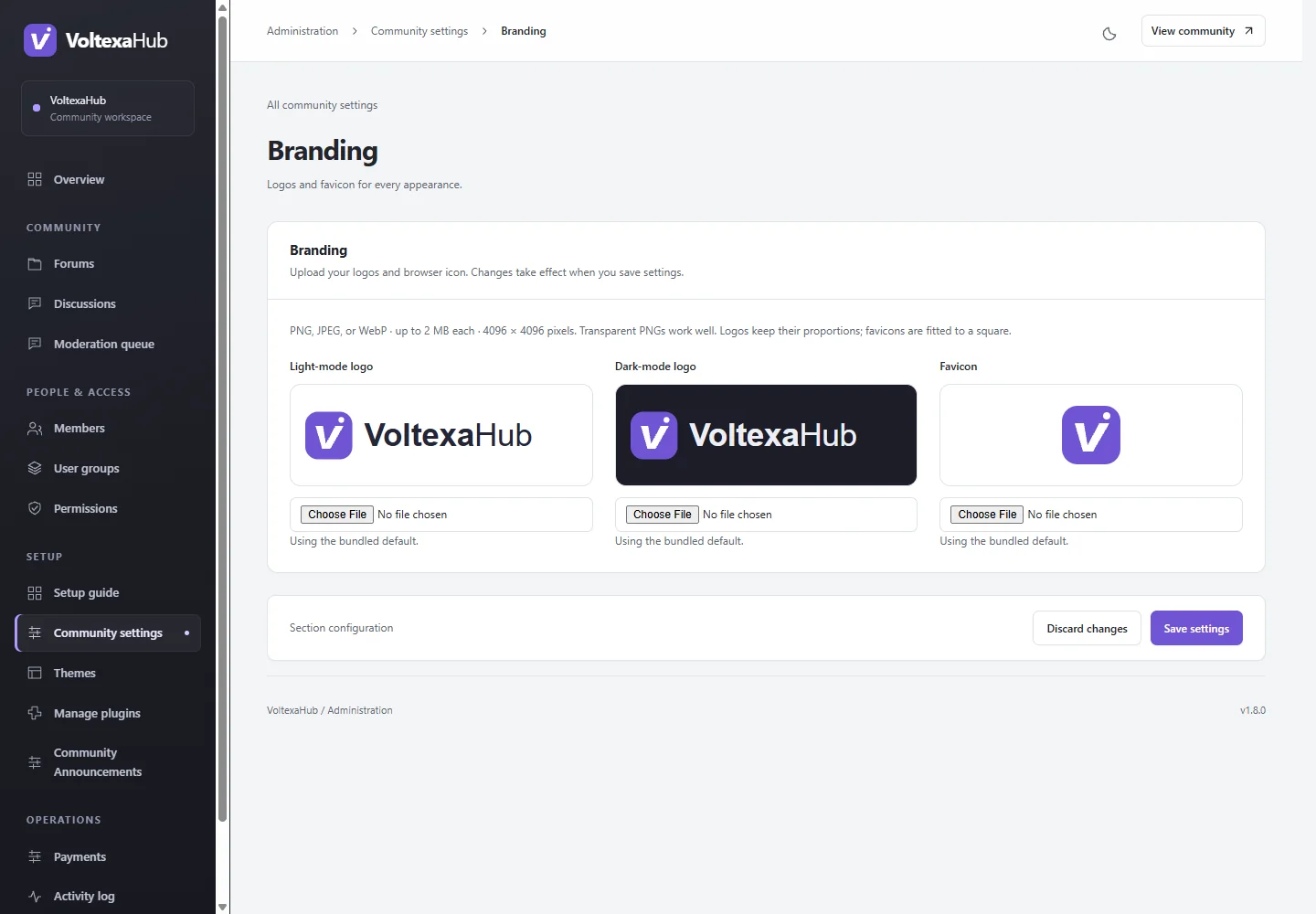
Branding lives on the private persistent uploads disk and is served through the public branding endpoint. Include uploads in backups. A new code deployment should preserve these assets.
Discussion appearance and reputation#
Discussion appearance selects compact author details or the classic postbit layout. Votes & reputation controls whether reputation is presented and votes are accepted; disabling the feature retains its ledger. Test long names, avatars and posts in light/dark modes.
Structural changes#
Use Themes for CSS or template changes and child theme development for custom layouts. Keep code customization out of core files so updates remain manageable.